Installation
HyperNodes runs in Autodesk Maya 2022–2027 on Windows 10 and 11 (64-bit). One installation works for every Maya version on the computer.
Download
There are two ways to buy HyperNodes.
Through Telegram
- On the home page, click Buy in Telegram — the @hypernodes_bot bot opens. The bot speaks Russian; the steps below say what each message means.
- Press Start in the bot (or send it
/start). The bot replies with a download link. - Open the link — the
HyperNodes_1.x.x.ziparchive downloads.
You don't pay yet: payment comes after installation, once you have your computer's Machine ID. The license arrives in the bot right after payment.
Through Boosty
If Robokassa doesn't accept your card (this happens with cards from some foreign banks), buy the license on Boosty. It costs a little more there because of the platform fee, and the license file is issued manually within one business day.
- Buy the HyperNodes post on Boosty.
- Download the
HyperNodes_1.x.x.ziparchive from the link in the purchased post.
Installation
- Unpack
HyperNodes_1.x.x.zipto any folder, for example Downloads. - Start Maya.
- Drag
install_hypernodes.pyfrom the unpacked folder onto the Maya window — onto the viewport.
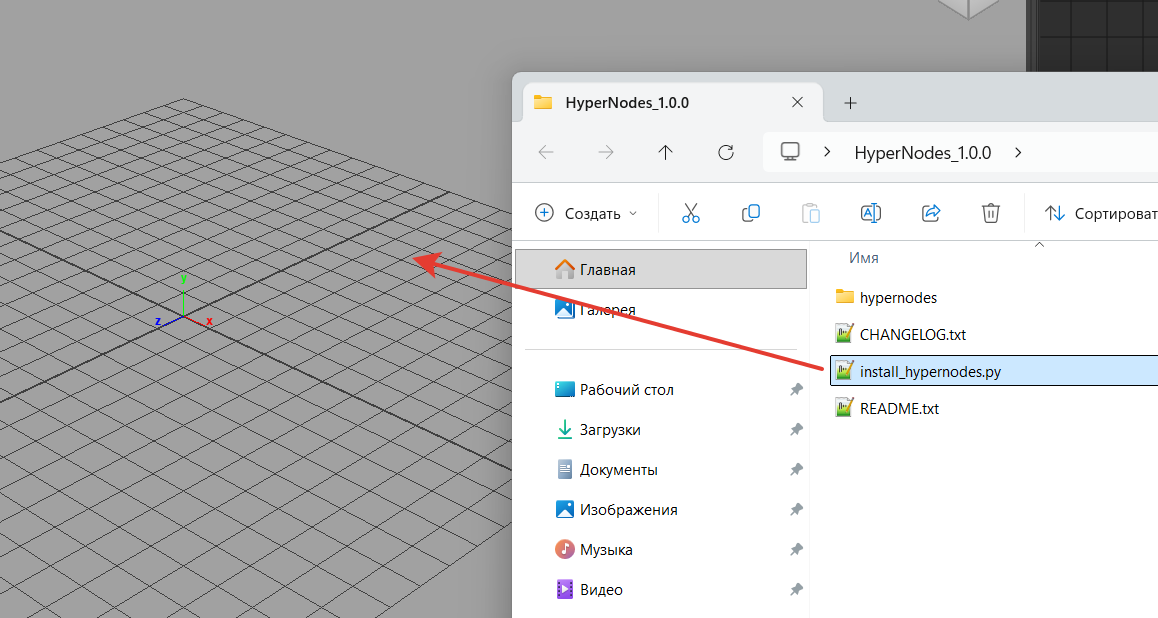
The installer copies HyperNodes to the Maya scripts folder (Documents\maya\scripts\hypernodes), adds a HyperNodes button with its own icon to the current shelf, and opens the HyperNodes panel right away. You no longer need the unpacked folder after that.
Manual installation
Copy the hypernodes folder from the archive — the folder itself, not the outer HyperNodes_1.x.x — to Documents\maya\scripts, so that you get Documents\maya\scripts\hypernodes\__init__.py. Then start HyperNodes with the command from the "Starting" section below. To have HyperNodes in one Maya version only, copy the folder to that version's own scripts folder, for example Documents\maya\2026\scripts.
Buying and activating the license
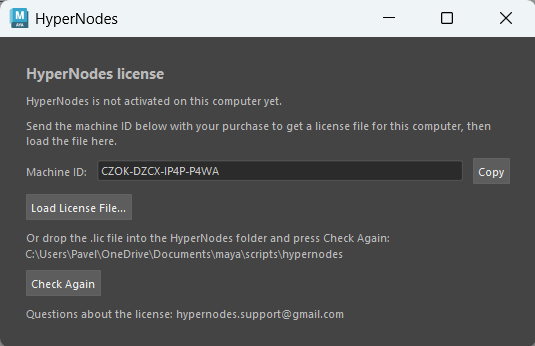
On the first start, a license window opens instead of the editor.
Through Telegram
- Click Copy next to Machine ID and send the code to the @hypernodes_bot bot as a plain message.
- The bot asks for your email — send it. It goes into the license, and the receipt is sent to it.
- The bot shows the order: Machine ID, email and amount. If something is wrong, just send the Machine ID again.
- Click the Оплатить (Pay) button under the order and pay by bank card. Payments are processed by Robokassa.
- Right after payment, the bot sends the license file
hypernodes.lic. Download it. - In the license window, click Load License File... and choose this file — the editor opens.
Lost the file? Send /license to the bot, and it sends your purchased licenses again.
Through Boosty
- Click Copy next to Machine ID in the license window.
- Send the Machine ID and your Boosty nickname to hypernodes.support@gmail.com.
- The license file arrives in reply to your email within one business day. Load it with the Load License File... button.
Instead of Load License File..., you can put the .lic file into Documents\maya\scripts\hypernodes and click Check Again — this works with either way of buying.
The license is tied to the computer and stored in %APPDATA%\hypernodes, so updates don't touch it. Help → License… shows who the license is issued to and where the file is.
Reinstalled Windows or replaced the drive
After reinstalling Windows, replacing the hard drive or moving to a new computer, the Machine ID changes and the old license file no longer fits. Write to support at hypernodes.support@gmail.com: send the new Machine ID from the license window and the email you used when buying. We'll send you a new license file.
Starting
The HyperNodes shelf button opens the panel. You can dock it anywhere in the Maya window, and the next time Maya starts, the panel opens in the same place by itself.
Without the button, start HyperNodes from the Script Editor, Python tab:
import hypernodes; hypernodes.main.run()Updating
- Download the latest version: hypernodes.ru/download. The bot @hypernodes_bot sends the same link in reply to
/start, and it's also in the Boosty post. - Unpack the archive and drag
install_hypernodes.pyonto Maya, just like during installation. - Restart Maya.
Your settings and license are kept. Help → What's New… shows what changed.
Your settings
Editor settings, your own icons, saved HyperGroups and scripts are stored in %APPDATA%\hypernodes\user_data. To reset settings to defaults, close Maya and delete the user_data folder. Leave the license file hypernodes.lic next to it alone.
Uninstalling
- In Maya, remove the HyperNodes button from the shelf: right-click → Delete.
- Close Maya.
- Delete the
Documents\maya\scripts\hypernodesfolder. - If you no longer need your settings and license, delete
%APPDATA%\hypernodestoo.
Next: Quick start.