Quick start
Five minutes: bring scene nodes onto the canvas, expand their connections, move around the graph and connect an attribute. Until you connect or delete something yourself, the Maya scene stays untouched — the canvas only shows the graph.
1. Open the panel
Click the HyperNodes shelf button. You can dock the panel anywhere in the Maya window — next time it opens in the same place.
2. Bring nodes onto the canvas
Select one or more objects in Maya, hover over the canvas and press Alt+2. You can also use the mouse: drag objects onto the canvas straight from the Outliner.
To remove selected nodes from the canvas, press Alt+1; to clear the whole canvas, Alt+3. Nothing is deleted from the scene.
3. Expand connections
Hold the right mouse button on a node — a menu appears around the cursor:
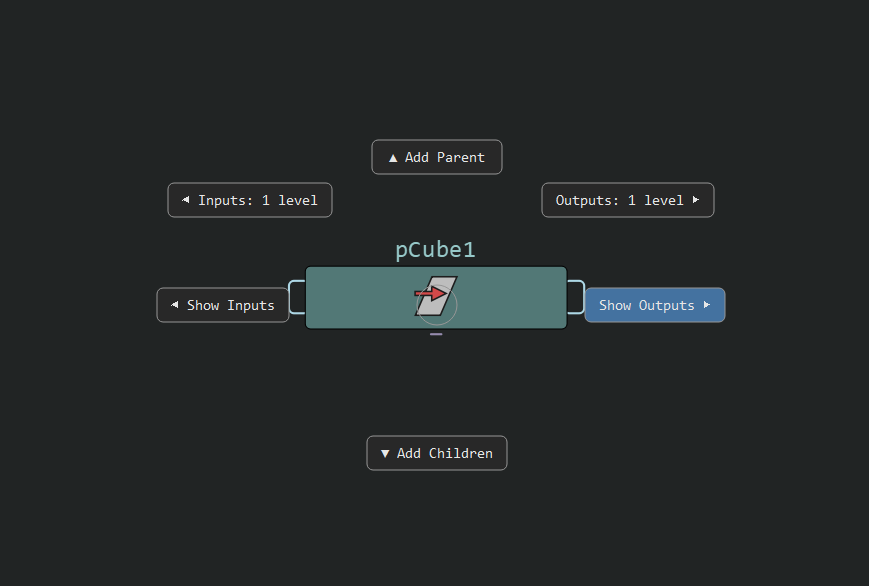
- left — all of the node's inputs, the whole chain;
- right — all outputs;
- up-left and up-right — just one level of inputs or outputs;
- up and down — parent and children in the hierarchy.
New nodes line up along the connections, and nodes already on the canvas don't move. Once you know the directions, you don't have to wait for the menu: press the right button and move the mouse in the direction you want right away.
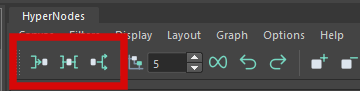
The Input Connections, In + Out and Output Connections toolbar buttons do the same for the Maya selection, but start from a clean canvas: everything on it is replaced by the new graph.
4. Move around the graph
- Mouse wheel or Alt + right button — zoom in and out.
- Middle button — pan the canvas.
- F — frame the selected nodes, A — the whole graph.
- Ctrl+Alt and a left-button box — zoom into the area.
5. Show the attributes you need
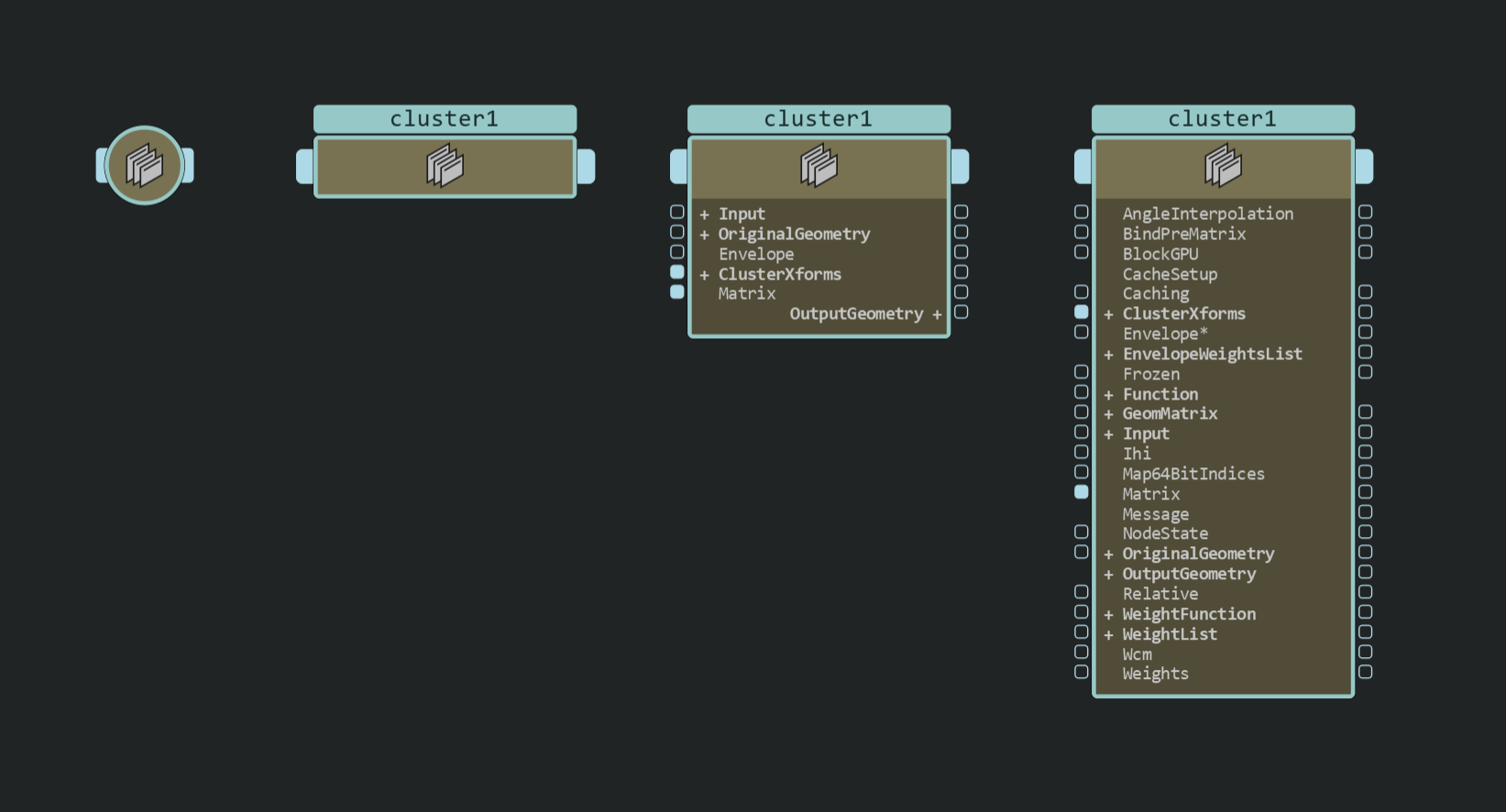
Select nodes and press 2 to show more of their attributes, or 1 to show fewer. Hold the key, and the nodes expand fully or collapse to the compact view at once.
6. Connect an attribute
Drag a connection from one node's output to another node's input. If you drop the connection on the node itself rather than on a port, it lands in the attribute with the same name.
Need a new node? Press Tab and start typing its type.
If something goes wrong
- Esc cancels the connection you're dragging.
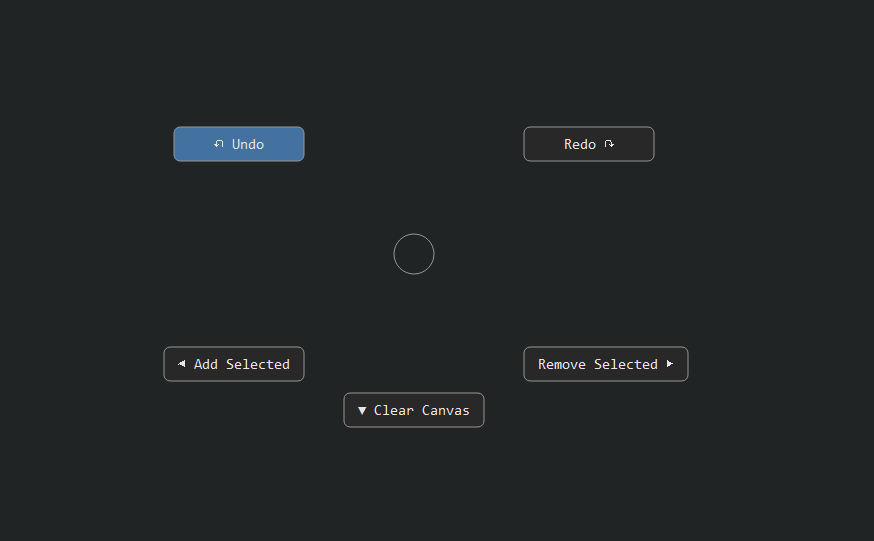
- Canvas changes — nodes added and removed — are undone separately from Maya's own Undo: hold the right button on an empty spot of the canvas and move the mouse up-left (Undo) or up-right (Redo).
- Connections and nodes you created are undone with Maya's usual Ctrl+Z.
Next: working with the graph.